Overview
Once a reservation is created in Concur, several options are available for modifying your travel by clicking on the Trip Name/Description.
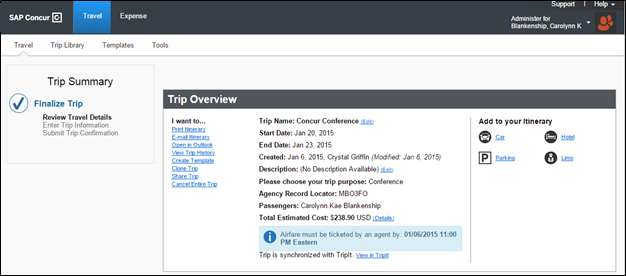
Clone Trip
Cloning a trip allows you (or your Travel Arranger) to create an identical (or similar) reservation for another employee or guest based on an initial reservation.
Note: You (or your Travel Arranger) must be defined as a Travel Arranger for the additional employee(s) to perform this task.
Cloning trips save time when Travel Arrangers are:
- Booking reservations on behalf of multiple departmental employees.
- Booking similar travel arrangements for multiple U-M business guests.
- Booking reservations on behalf of employees and their personal guests (i.e., companion paid for at the employee’s expense).
Note: Guests do not have a profile or default payment method saved in Concur Travel so Travel Arrangers will need to have payment information available when making guest reservations. - Employees booking reservations for their guests (i.e., companion paid for at their own expense).
Share Trip
Sharing a trip allows you (or your Travel Arranger) to share a reservation with another employee. The sharing process generates a system email invitation to the second employee and a link on that employee’s Concur travel page permitting them to use the initial reservation as a base for building their own reservation.
Note: You (or your Travel Arranger) can share reservations with any U-M employee, even if you are not defined as a Travel Arranger for that employee.
Sharing trips may save time when:
- The other employee prefers to book their own travel reservations.
- Employees (or Travel Arrangers) wish to share a reservation with employees in another unit.
Cancel Trip
Cancel trip allows you (or your Travel Arranger) to cancel all or part of your reservation.
Note: You are subject to change fees that may be applied by the vendor for these cancellations. In the case of a flight cancellation, the savings are captured in the name of the employee/guest, to be applied the next time a flight on that same carrier is booked.
Add to Your Itinerary
Changing a trip allows you (or your Travel Arranger) to modify reservation details.
- You are subject to change fees that may be applied by the vendor for these modifications.
- The Add to your itinerary function permits employees to add additional reservation details to an existing trip (e.g. add a hotel reservation to a flight). Employees are encouraged, when possible, to book their flight first and then add hotel/car/other reservations later.
- Every reservation generates a booking fee; adding to or updating an existing reservation may generate additional fees. Airfare always generates a booking fee so it cannot be added to an existing reservation. Therefore, employees are advised, whenever possible, to book their flight as part of their initial reservation.
- For details regarding the fee structure charged by the university preferred travel vendor, please see the Procurement Services website.
- Additional questions about the U-M reservation fee structure can be directed to the Finance Customer Care team at 734-614-2000, press 3, press 1.