Overview
This procedure describes both the required and most common optional data entered in the Travel Profile. Review the procedure in its entirety or click a link below to learn about a specific option.
- Required Contact/Regulatory Information – add/update the required contact/regulatory information
- Frequent-Traveler Programs – add/update optional personal travel programs
- Assistants and Travel Arrangers – add/update optional travel arrangers
- Credit Cards – add/update optional credit card information for payment
Go to the Travel Profile Options section of this document for a complete list of options.
Note: The fields filled out in the Concur profile are for travel booking, ticketing, and reservation functions only. Adding or updating this information does not add/update your personal information in Wolverine Access or other U-M databases. The information can be viewed by yourself, your delegate, the U-M Travel agency if assisting you with your travel, and may be shared with travel vendors (e.g. hotels, airlines, etc.) as part of the reservation process.
Step-by-Step Process
Required Contact/Regulatory Information
- Click Profile.
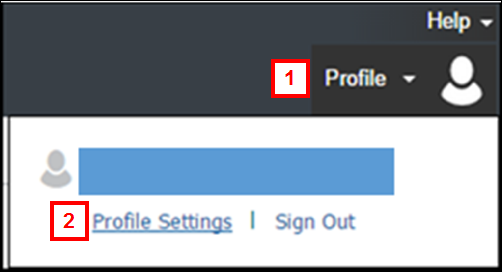
- Click Profile Settings.
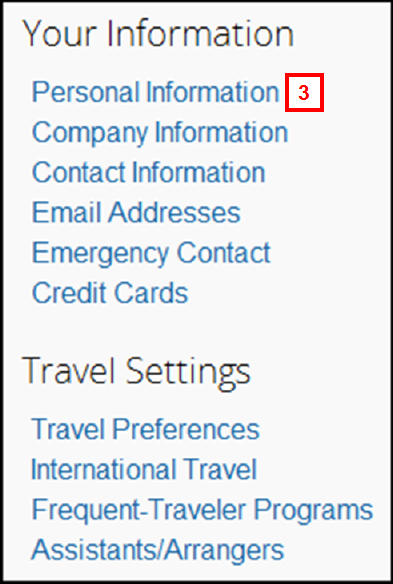
- Click Personal Information to view the entire profile package.
OR
Click a link under Your Information or Travel Settings to go to a specific pane.Left Navigation Menu Screenshot
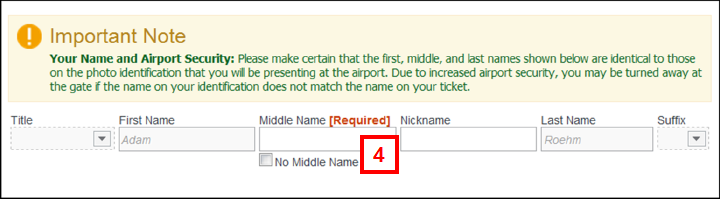
- Enter your Middle Name or check the No Middle Name box.
Name and Airport Security Screenshot
- Enter your full, office phone number in the Work Phone field (e.g., 734-555-1212),
OR
Enter your full Home Phone number.
Note: Contact Information is required in case the travel agency or your travel arranger needs to get in touch with you.Contact Information Screenshot
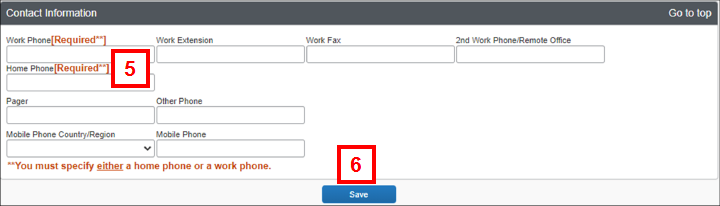
- Click Save.
Note: Save appears at the end of several panes in the travel profile. Save at any point when entering/updating your profile. - Confirm your university email address appears in the E-mail 1 field.
Note: You may add personal email addresses, if applicable.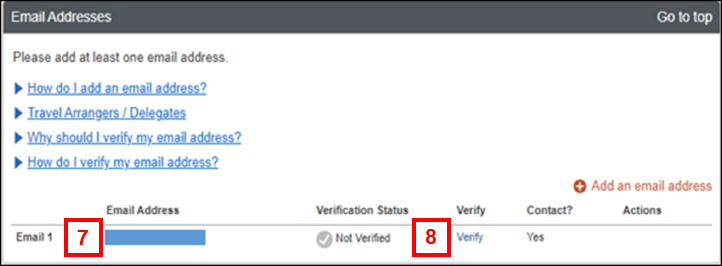
- Click Verify.
- Check your email for a verification from Concur.
- Copy the code from the email into the Enter Code field next to your email address.
- Click OK to submit the code and complete verification.
- Once your email has been verified, you will see
 under the Verification Status.
Note: By verifying your email address, users are able to use the ExpenseIt feature in the Concur mobile app. This feature enables you to take a picture of a receipt on your iPhone or Android mobile device and automatically create an expense line. - Check the Government box for Government rates.
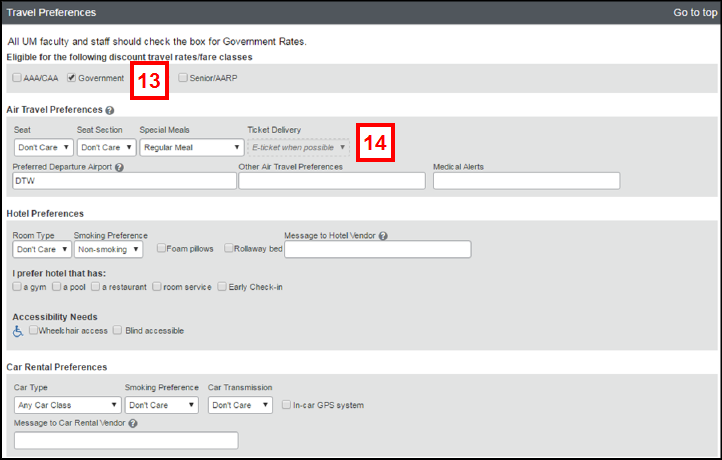
- Select the appropriate options based on your personal preferences under Air Travel Preference and Hotel Preferences.
Frequent-Traveler Programs
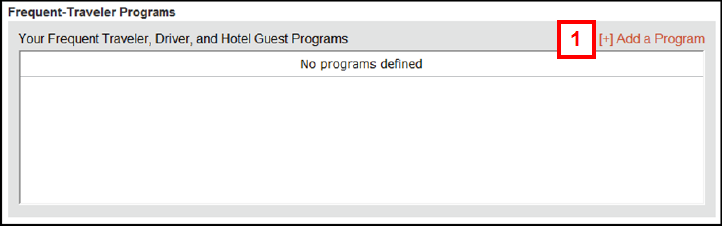
Concur allows you to apply personal frequent traveler programs (e.g., frequent flyer) to your business travel. This pane is optional.
- Click Add a Program.
Note: The Add Travel Programs pop-up box appears.Frequent-Traveler Programs Screenshot
- Select the Airline, Car Rental or Hotel radio button to designate the type of travel program you wish to enter.
Add Travel Programs Screenshot
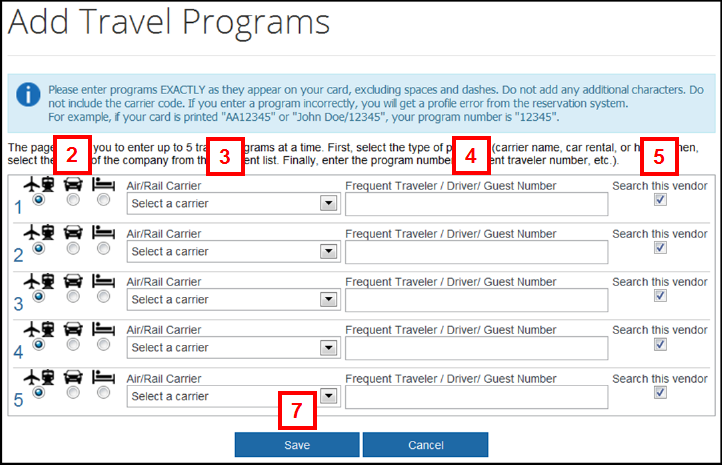
- Select the specific Carrier (plane/train), Car Rental Company, or Hotel chain from the drop-down list.
- Enter your card number for the program (e.g., frequent flyer number) in the Frequent Traveler/Driver/Guest Number field.
- Check the Search this Vendor box to give priority to this vendor in your searches.
- If applicable, repeat steps 2 – 5 for each travel program you wish to use.
- Click Save.
TSA Secure Flight
- Turn on the applicable radio button for Gender.
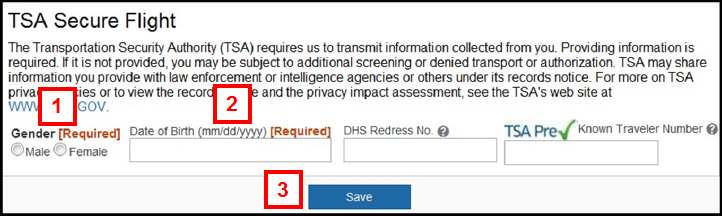
- Enter your Date of Birth.
- Click Save.
Assistants and Travel Arrangers
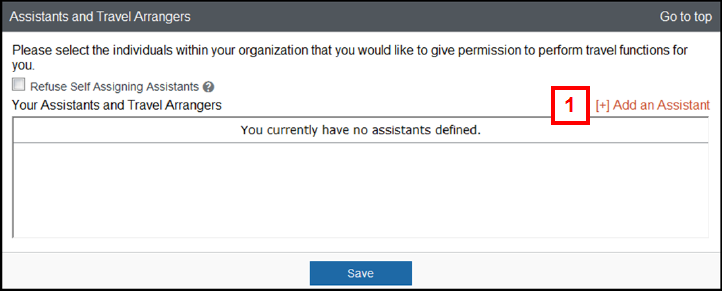
Travel arrangers are university employees that can act on your behalf by booking travel and acting as a point of contact with the U-M travel agency. This pane is optional.
- Click Add an Assistant.
Note: The Add an Assistant pop-up box appears. - Enter the individual’s uniqname or last name in the Assistant search field.
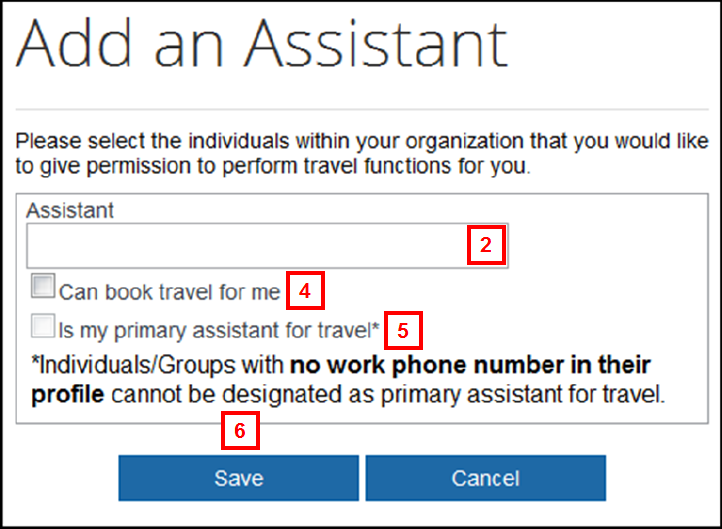
- If applicable, select the correct individual from the Assistant drop-down list.
- Check the Can book travel for me box.
Note: You must check this box for your travel arranger to be able to book travel on your behalf. - To define this individual as your primary travel delegate among multiple delegates, check the Is my primary assistant for travel box.
Note: You can only define a person as your primary travel assistant if that individual has entered their Contact Information in their own travel profile. This individual may be contacted on your behalf if your travel reservations change and the vendor is unable to contact you. - Click Save.
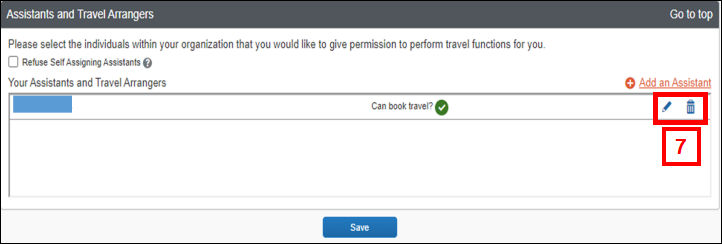
- To modify, click the Edit Assistant
 icon. To delete, click the Delete Assistant
  icon.
icon.
Assistants and Ravel Arrangers Screenshot
Assistant and Travel Arrangers Screenshot
Credit Cards
To book travel reservations through Concur Travel (optional), enter a PCard or a personal credit card to reserve travel options.
U-M PCard holders are responsible for entering their PCard into their Travel Profile and making any updates to the Card information (name, card number, address, etc.) as changes occur over time.
Employees who do not enter default payment method data will be prompted for a Credit Card during the reservations process. The card number provided will be saved in the employee Travel Profile for future use. Employees utilizing Travel Arrangers should pre-populate this information so they do not need to share Credit Card data with their arrangers at a later date.
- Click Add a Credit Card.
Note: The Add a Credit Card pop-up box appears.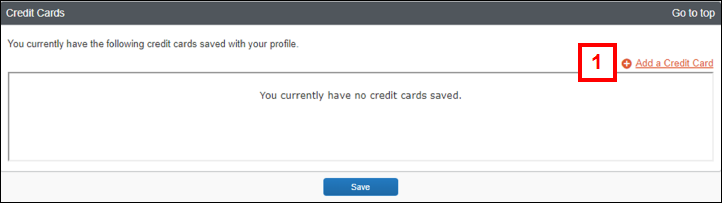
- Enter the following information for the credit card:
- A name for this credit card in the Display Name field (e.g. U-M PCard).
- Your name in the Your Name as it appears on this card field.
- Select the Card Type from the drop-down list.
- The Credit Card Number.
- Select the expiration month and year for the card from the Expiration Date drop-downs.
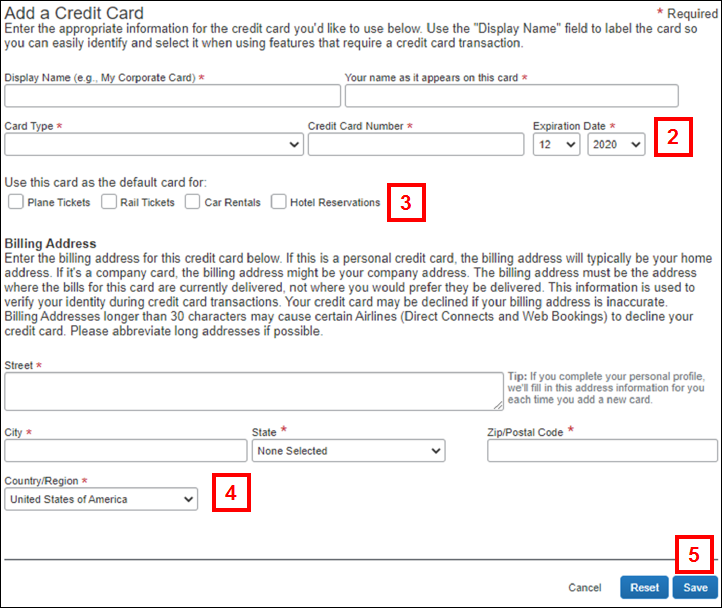
- Check the applicable Use this card as the default card for boxes.
Note: Selecting a card as a default payment method will remove the payment screens from the travel reservation process. Employees wishing to have multiple cards in their profile for reservations should not make one card their default. - Enter the card’s billing address in the Street, City, State, Zip, and Country fields.
- Click Save.
Notes:- The system encrypts the credit card number upon saving. Only the last four digits appear in the Credit Cards pane.
- If your PCard or personal credit card information changes (e.g. Card Number, Name, etc.), click Edit Credit Card to update this pane.
- To remove a credit card from your profile, click Delete Credit Card for the appropriate card, then click OK in the warning message.
Travel Profile Options
The table below describes the purpose of each of the Travel Profile panes as they appear on the page in Concur.
Pane |
Description |
|---|---|
Your Name and Airport Security |
This pane contains your personal information as imported from the U-M Human Resources Management System. To correct your primary (legal) name, complete the Address/Personal Data Form OR contact the HR/Payroll Service Center at (734)615-2000. |
Company Information |
Your EmplID (Employee ID) defaults from the U-M Human Resources Management System. The Manager field defaults to the name of your expense report approver as you entered it in your Concur Expense Profile. |
| Work Address Home Address |
Optional panes. Your addresses may be used by the U-M travel agency when they directly assist you with reservations or inquiries (e.g., if you request paper tickets or a vendor contacts them on your behalf). |
| Contact Information | Provides your contact information to the U-M travel agency in case they need to contact you regarding your airline, hotel, and/or rental car reservations. |
| Emergency Contact | Emergency contact information is provided to the U-M travel agency and vendors to use in case of emergency. |
| Travel Preferences | Permits you to enter applicable personal discounts (e.g. AARP, AAA, etc.). These preferences are applied when searching for travel options (e.g., hotel) in Concur Travel. The Government box should be checked, as many vendors will provide government discounts for U-M employees. Medical alerts are not provided to the U-M travel agency or vendors. |
| Frequent Traveler Programs | Permits you to enter your personal frequent air/hotel/car/rail traveler program numbers to receive personal “points/credit” for professional travel. Appropriate frequent traveler numbers are applied to reservations during booking. |
| TSA Secure Flight | Permits you to add information about your gender, date of birth, DHS Redress Number, and TSA PreCheck Known Traveler Number. If you do not populate your gender and date of birth, you will be prompted to do so while making your airline reservations as these are required by the TSA. Note: If you have a DHS Redress Number or TSA PreCheck Known Traveler Number you are encouraged to enter it here, if not, leave the field blank. |
| International Travel | Permits you to enter passport data. Passport data is pulled into the reservation process for international travel. |
| Assistants & Travel Arrangers | Permits you to designate employees as Travel Arrangers who have permission to book travel on your behalf. |
Credit Card |
Permits you to enter default payment data for U-M PCards or personal Credit Cards. |