Overview
This document details how to add a prospect plan, plan steps and an opportunity in the Donor & Alumni Relationship Tool (DART).
You must have the DART Portfolio Plan Management role to perform this task.
Important Information
- The Add a Plan wizard combines three of the most commonly used tasks into one easy-to-use tool. This tool allows you to add a prospect plan, multiple plan steps and multiple opportunities at one time.
- This tool is used to add a new plan, steps and/or opportunities and cannot be used to edit existing plan information.
- To use the Add a Plan wizard, you must first Search for a Prospect to find the prospect.
Add a Plan Wizard - Add Prospect Plan
- On the Constituent Record, click Add a Plan Wizard on the Explorer Bar.
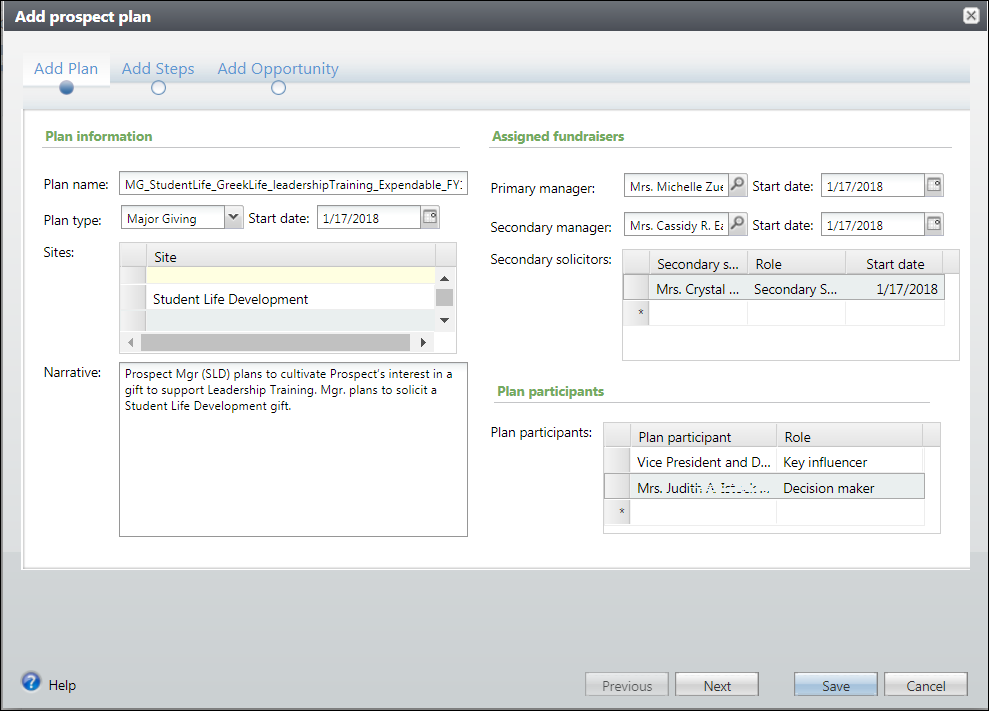
- Enter a Plan name in the U-M standardized format.
- Select a Plan type from the drop-down list.
- Enter the Start date of the plan.
- Select the Site that the plan targets.
- Enter a short description of the plan objective in the Narrative field.
- Enter or Lookup
 the name of the Primary manager of the plan.
 - Enter or select the Start date of the Primary manager.
- Enter or Lookup the Secondary manager of the plan if one is assigned.
- Enter or select the Start date of the Secondary manager.
- Enter or Lookup the names of any Secondary solicitors assigned to the plan and enter or select their start dates.
- Enter or Lookup the names of any Plan participants involved with the plan and their roles in the plan.
- Click Next to move to the Add Steps tab OR Click Save to exit the wizard.
(Plan Type)_(SCU)_(Department)_(Initiative)_(Funding purpose) _(FY or CY)
Add a Plan Wizard - Add Plan Steps
- Enter the Objective. For example: Invite Mr. Smith for a Law Quad tour to discuss professorships.
- Select the Owner. (Person who will complete the step.)
- Select the appropriate Stage such as Qualification or Solicitation.
- Select the appropriate Status such as Planned or Pending.
- Enter or select the Expected date.
- Enter any Comments (Who, What Where, When Why) For example:Joan Arc (LAW) will invite Mr. Smith to a tour of the Law Quad to cultivate his interest in a Law professorship.
- Add Additional solicitors as applicable.
- Select the appropriate Contact Method such as Phone Call or Email.
- Select the appropriate Category such as Events or Prospect Management.
- Select the appropriate Subcategory such as Prospect Move or Major Gift Strategy Session.
- Select or enter a Location.
- Add Participants as applicable.
- Click Next to move to the Add Opportunity tab OR Click Save to exit the wizard.
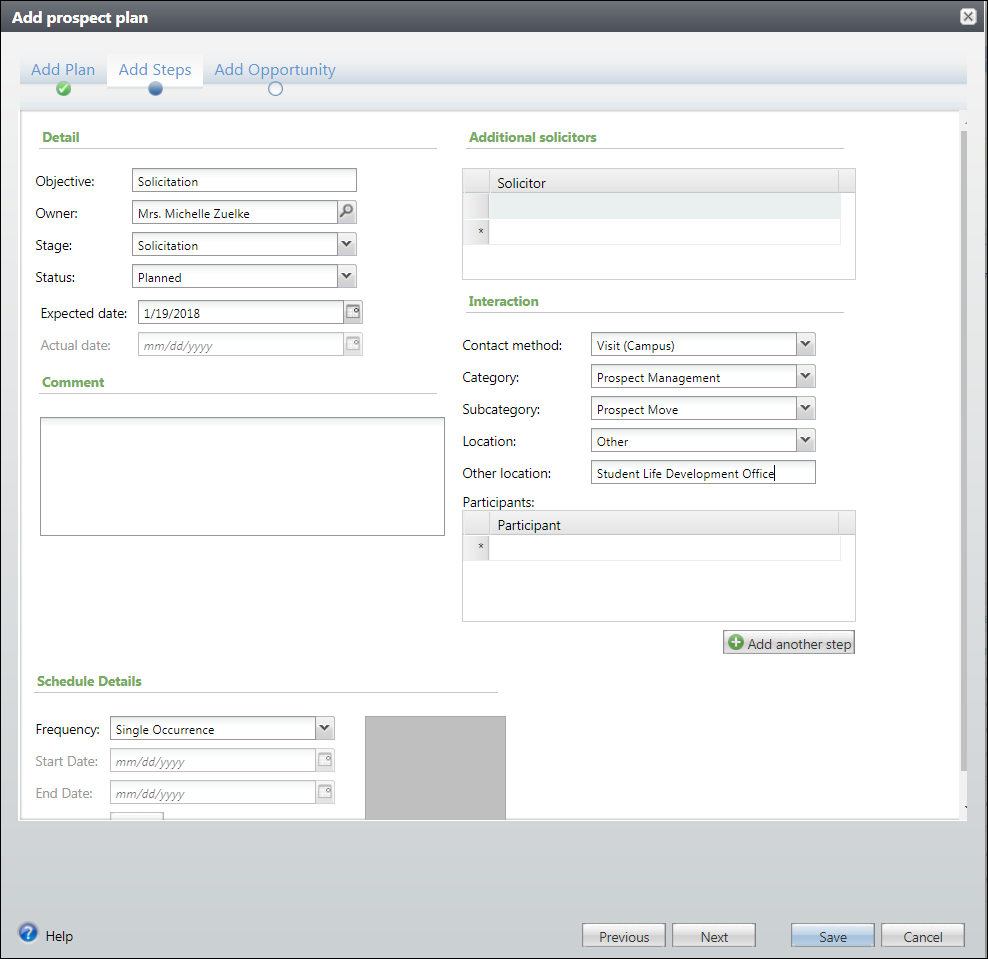
Note: The Location drop-down will display all the constituent's active addresses. It also contains an option of Other, for an interaction that takes place in a different location. If Other is selected, a free-form text box will appear so the location can be entered.
Add a Plan Wizard - Add Opportunity
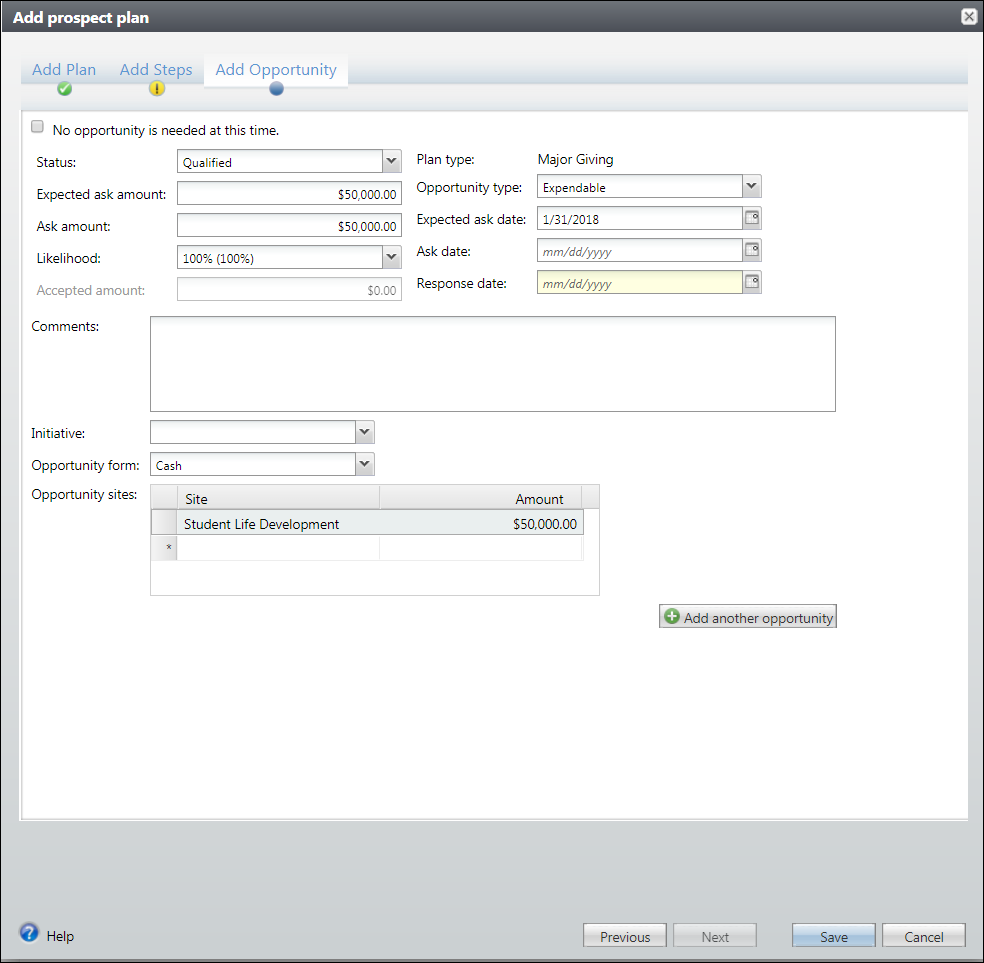
- Select the Status of the opportunity such as Qualified or Unqualified
- Enter the Expected ask amount.
- Enter the Likelihood, if applicable.
- Select the Opportunity Type such as Building, Endowment. or Expendable.
- Enter or select the Expected ask date.
- Enter the expected Response date.
- Enter Comments (Who, What Where, When Why) For example, Joan Arc (LAW) plans to ask Mr. Smith for a $50K (cash) gift to establish an endowed professorship.
- Select the Initiative, if applicable.
- Select the Opportunity form such as Cash or Pledge.
- Enter the Site(s) that the opportunity will benefit and the amount of the opportunity.
- Click Save to exit the wizard.
Notes:
- All plan team members must have a documented start date entered into DART.
- To receive credit for an opportunity, an individual MUST be included on a prospect plan in DART as a primary plan manager, secondary plan manager, or secondary solicitor.
- As you enter the plan, steps and opportunities, the navigation bar will display icons which will indicate if each tab is complete.
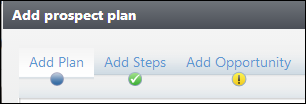
 Displays on the current tab.
 Displays when the tab is complete and correct.
 Displays when the tab is incomplete and needs to be corrected before saving.