Overview
If you have not already done so, you will need to create a Friend account by visiting https://accounts.it.umich.edu/friend/
Important: You must use the email address attached to your Supplier user profile to create the Friend account. If you create a Friend account with a different email address, our systems will not be able to verify your identity, and you will not be able to access the portal after the transition to Okta. During Friend account setup, you will set a password for the account. This password is just for Friend account management, so you will not need it to access the Supplier Portal through Okta.
Navigation
Supplier Portal: https://procurement.umich.edu/supplierportal
Step-by-Step Procedure
- Enter your Friend account email in the uniqname or Email Address field.
Note: You must enter a Friend account email address. A uniqname or UMICH email cannot be used.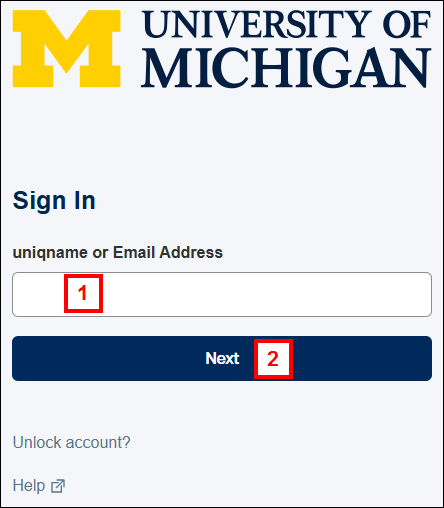
- Click Next.
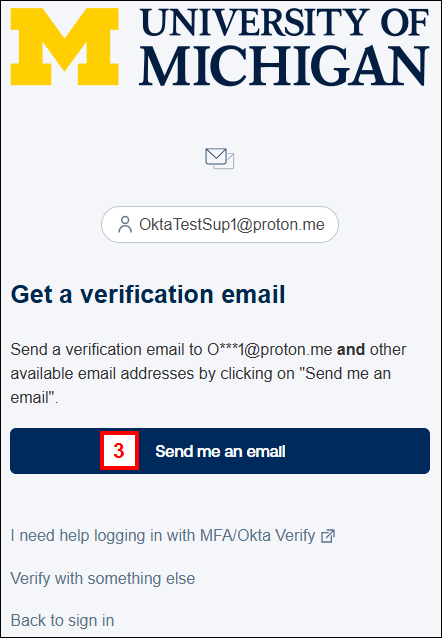
- Click Send me an email.
Get verification email Page Screenshot
- Navigate to your email inbox.
- From the One-time verification code email, click Sign In and you will be directed to the Supplier Portal
Note: If using the Sign In button, your email inbox page and Sign in page must be in the same browser. You cannot copy and paste the link from the email or Sign In button.
OR
Copy the 6-digit code and continue to step 6.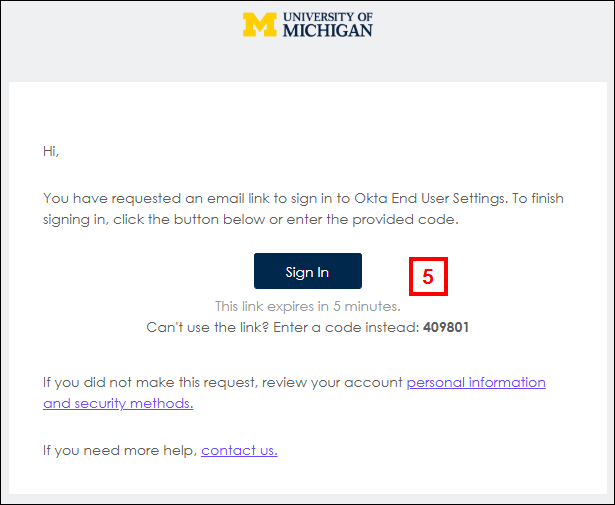
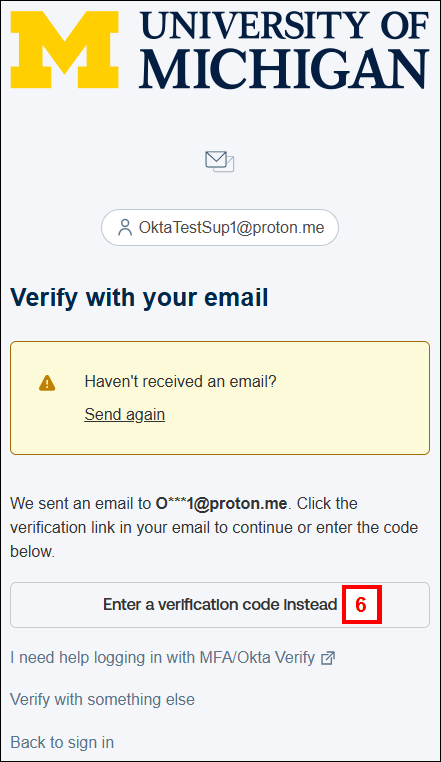
- Click Enter a verification code instead.
Verify with email Page Screenshot
- Enter the code from the email.
Verify with email Page Screenshot
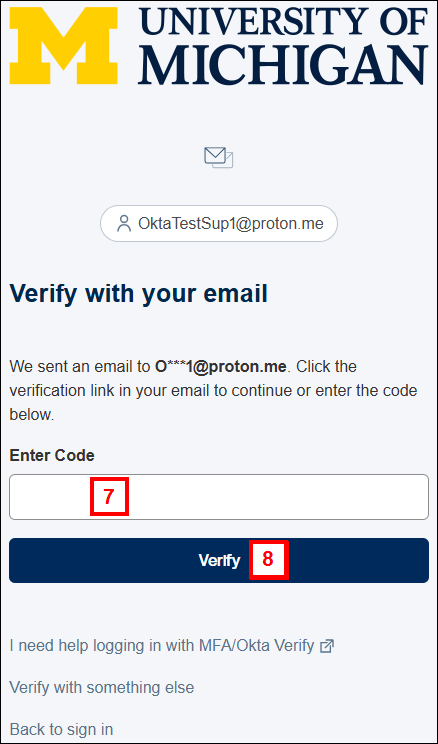
- Click Verify.
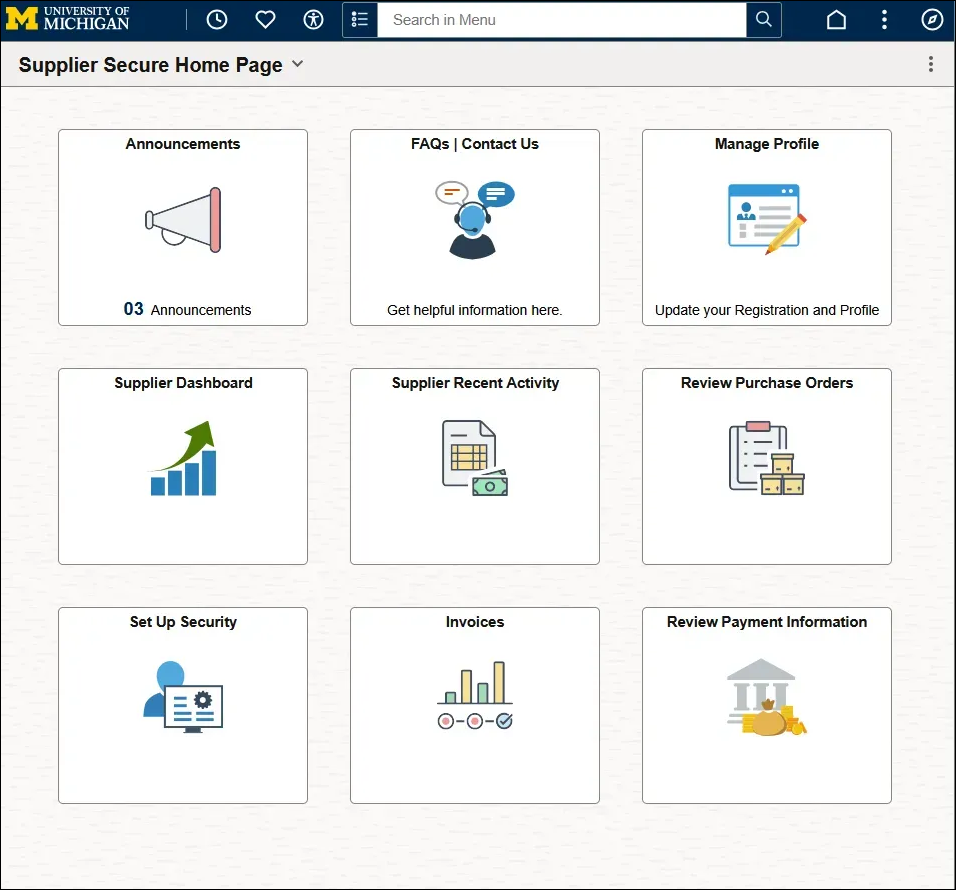
- You will be directed to the Supplier Portal.
Supplier Portal Page Screenshot