Overview
This procedure details how to prepare an invoice for Game Day Event Requests in the Donor & Alumni Relationship Tool (DART). It contains a summary of the requirements for the Game Day Invoice Process. This process allows a user to review requests that need to be invoiced or will be billed to a shortcode. It also allows the user to add shipping fees if needed, and export data to a Google application to create invoices.
You must have the DART Game Day Events Invoicing - OUD role to perform this task.
Business Process
Approximately ten days before the date of a home football game, an invoice is sent to game ticket requesters (and/or recipients) who have asked for tickets for that game. The invoice will list the amount due and the amounts already paid for any fees for the game.
Requests will be displayed on this page when all of the following conditions are true:
- The Viewable Status of the ticket request is
Assigned
orReady for Distribution
orDistributed
[EXCEPT when payment information has OUD checked, the recipient type isstaff,
and the purpose isworking staff
-- because OUD working staff are comped]. - The request is for game tickets or for the Regent’s Guest Area.
- The request is NOT an Athletics Development Office request.
Requests from schools, colleges, and units, can make payments using a shortcode. For other recipients, payments can be made by check or credit card.
To prepare and track these invoices, there are two pages in DART:
- Preparing Invoice: This page allows a UDE staff person to filter by game and then select a recipient that needs to pay for a ticket for a game.
- Payment Details: This page allows UDE staff to export payment history for any particular invoice. The data exported will include the date, the amount, and the method of payment used for these multiple payments. This will allow the recipient to examine the invoice for accuracy and completeness.
Any of this information can be exported so that staff can use a Google application to create an invoice for that recipient. The process is repeated for all recipients that need to pay or register for that game.
Step-by-Step Process
Preparing an Invoice
- Click the Events down-arrow.
- Click Preparing Invoice.
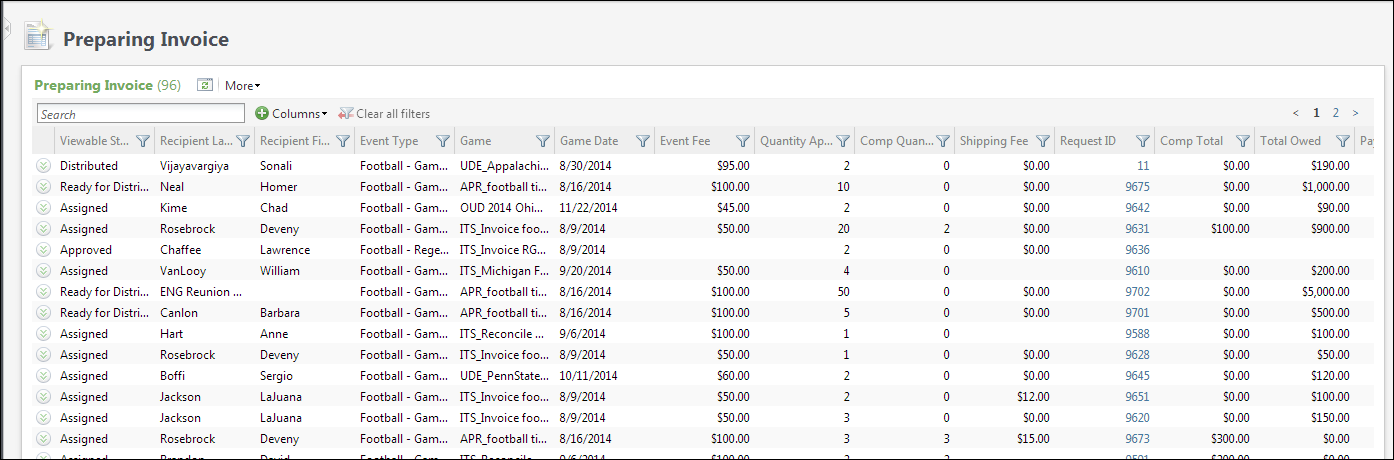
- The Preparing Invoice page displays.
Using Filters
- The Preparing Invoice page lists all ticket requests that require an invoice. Filters can be used to locate invoices for a specific game and status.
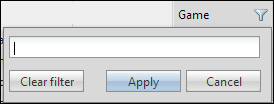
- Click the filter icon in the Game column.
- The filter box opens.
- Enter the name of desired game.
- Click Apply.
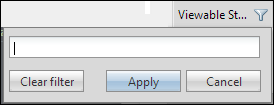
- Click the filter icon in the Viewable Status column.
- The filter box opens.
- Enter a status of Assigned.
- Click Apply.
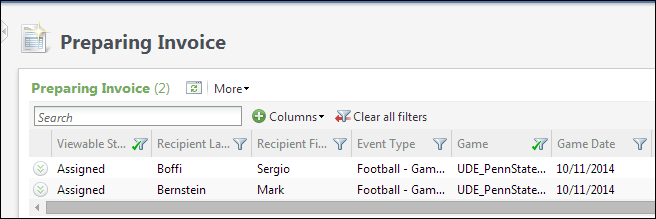
- The list is reduced based on the filter(s) applied.
Viewable Status Filter Screenshot
Preparing Invoice (Filtered) Screenshot
Edit the Request
Note: Editing the request allows you to add/change the shipping fee, the Invoice Status and the Viewable Status. Entering the invoice status is REQUIRED. Failure to do so will cause issues in the reconciliation process as they will be unable to reconcile the request purchase by shortcode.
- Click Expand
 to edit the request.
 - The Details section opens.
- Click Edit.
- Enter the Shipping Fee, if applicable.
- Select the Invoice Status of Invoice Sent or Shortcode billed.
Note: Invoice Status & Balance Due: When the invoice status for a request is updated to “Shortcode Billed,” the Balance Due for that request will automatically change to $0.00.
- Leave the Viewable Status as Assigned.
Note: Update Viewable Status: The system should automatically change the viewable status to "Ready for Distribution" when:
- the invoice status is
invoice sent
and the payment status ispaid-in-full
; or - the invoice status is
shortcode billed.
- the invoice status is
- Click Save.

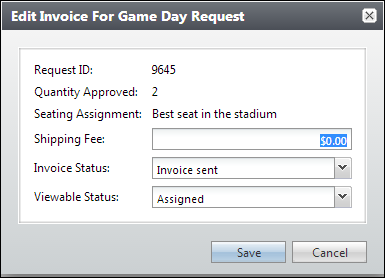
Note: Repeat for each request that needs an invoice.
Payment Details Page
This page allows UDE staff to export payment history for any particular invoice. See the Export section at the end of this section.
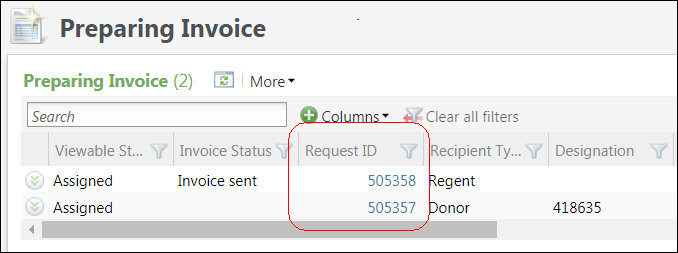
- The Request ID field on the Preparing Invoice page is used to link to the Payment Details page. Click the Request ID number in the Request ID column to navigate to the Payment Details page.
- The Payment Details includes information such as Payment date, amount, method and shipping fees.
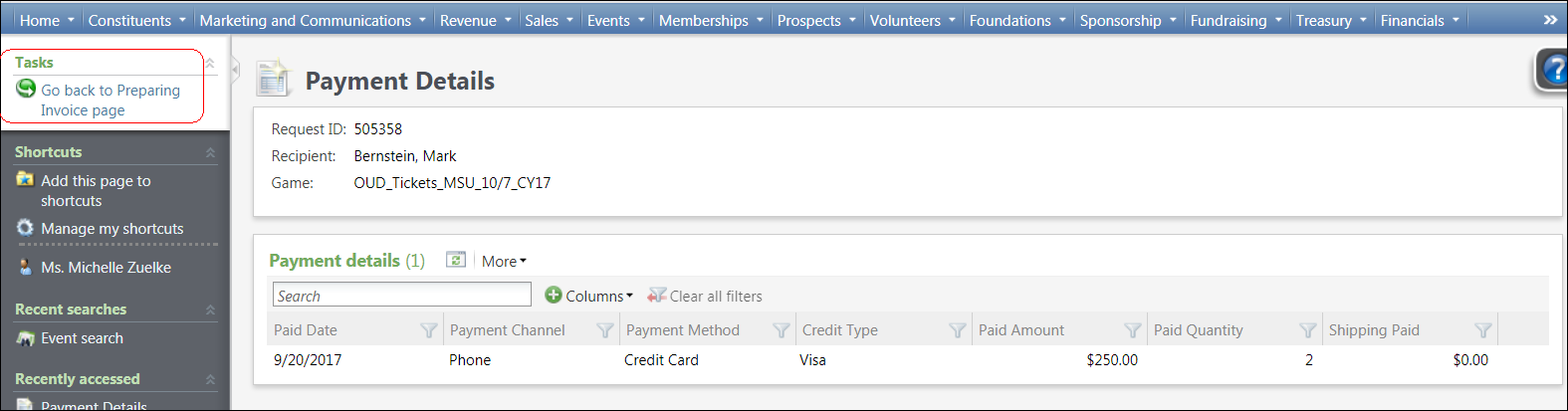
Note: In the Tasks bar is a link that will allow the user to return to the Preparing Invoice page.
Export the List
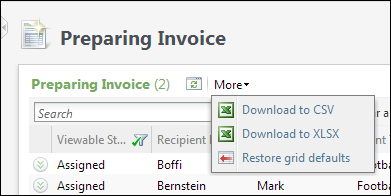
- Click the More drop-down arrow.
- Select Download to XLSX.
- The download icon will appear at the bottom of the screen, click once to open the spreadsheet.
- The spreadsheet opens and can be manipulated as needed.
Notes - Rearranging Columns
Rearranging Columns Screenshot
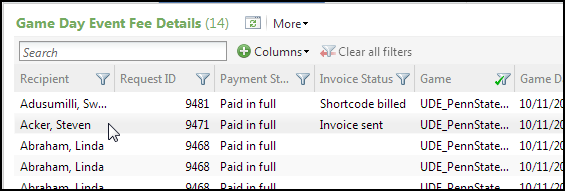
Rearranging Columns Screenshot
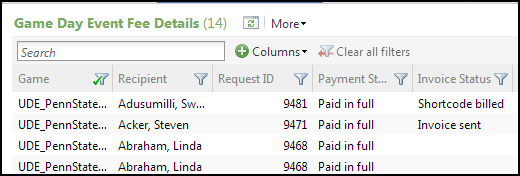
Columns can be rearranged by clicking on the column header and dragging the column to the desired location. In this example, the Game column has been moved to the first column position. If the columns do not line up correctly, move the scroll bar to reset the columns.
Notes - Column Filters
- The columns displayed can be changed. Click the drop-down arrow in the Columns field.
- Check or un-check the column titles as desired. Un-checked columns will not display. Be sure all necessary columns are checked.
- Click Apply.
- Click Clear all filters to return to the default display of all requests. This will not affect any column arrangements.
- Click Refresh to see updated data. This will not affect filters or column arrangements.
- Select More then Restore grid defaults to return to the default view. This will remove all filters and column arrangements.
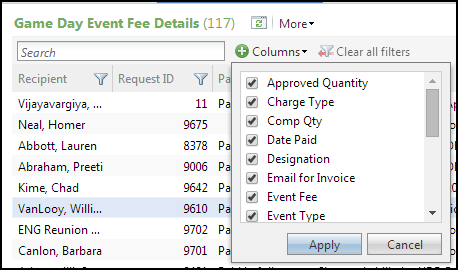
Note: Columns where filters are applied have the green check displayed.
Notes - Search Field
To use the Search field shown below, see the table for search criteria options.
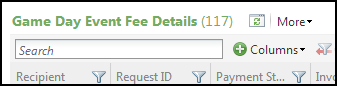
| Field Type | Yes | No |
|---|---|---|
| Text field such as Game, Status, Constituent Name, etc. | X | |
| Text & Numeric field such as Address | X | |
| Numeric field - Designation, Zip or Phone Number | X | |
| Numeric field – Date, Dollar Amount, Quantity. | X |